

The three fastest ways to batch upload artworks are an in-app bulk-upload interface for small to medium batches, a CSV or spreadsheet import that references image filenames for larger inventories, and intake forms or APIs when clients or external partners are submitting the files. Filenames and spreadsheet image columns serve as the standard bridge between your image files and your artwork records, regardless of which method you choose.
TL;DR:
- Uploading large inventories efficiently relies on establishing consistent filename patterns and running test batches to catch errors early.
- Spreadsheet imports enable rapid bulk creation of hundreds of records but require precise column structure and normalization to avoid duplicates.
- External submissions from clients are best handled with intake forms or APIs that link files automatically to contact records and reduce upload failures.
- Preparing files with supported formats, clean metadata, and properly named images significantly improves batch upload success rates.
- For complex or high-volume collections, professional onboarding and management services help streamline the import and organization process.
Table of Contents
- Method 1: Bulk upload through the platform interface
- Method 2: CSV and spreadsheet import for larger inventories
- Method 3: Intake forms, public links, and APIs for outside submissions
- Preparation checklist before you upload anything
- Mapping filenames and spreadsheet columns to artwork fields
- What to do when a batch upload fails
- Why Artworksoft fits this workflow
- The real trade-off: speed versus verification
- Get help with large or complex imports
- FAQ
- Sources
Method 1: Bulk upload through the platform interface
For most individual artists, collectors, and small galleries, the in-app bulk upload tool is the quickest path from a folder of images to finished artwork records. It works best when you have fewer than a few hundred pieces and want to verify each entry as it comes in, rather than trusting an automated pass to get every field right.
The general workflow looks like this across most art management systems, including the bulk-upload flows documented in vendor user guides such as the Artwork Creation Bulk Upload guide:
- Navigate to Inventory → Artworks, then select Bulk Upload or New Record → Upload and Create Multiple.
- Select the image files from your computer, either one at a time or as a batch selection.
- Enable Extract Fields From Filename if your platform supports it, so titles, artists, or dates populate automatically from consistent filenames.
- Review and fill in any required fields the extraction missed, such as medium or dimensions.
- Save the batch to create individual artwork records.
A few practical notes make this smoother:
- Keep your browser tab open until the upload confirms completion, since large image batches can take a few minutes to process.
- Rename files before uploading rather than after, since renaming post-upload rarely updates the record automatically.
- Upload in smaller waves of images if your connection is unreliable, rather than one massive batch.
This method suits anyone who wants eyes on every record before it goes live. It is slower per image than a spreadsheet import, but it catches errors early rather than after a few hundred records are already wrong.
Method 2: CSV and spreadsheet import for larger inventories
Once your collection grows past a moderate number of pieces, a spreadsheet import becomes faster than clicking through individual uploads. Most systems expect a defined set of columns, and getting those right the first time saves a lot of cleanup later.
A working spreadsheet typically needs:
- Title, Artist, Year, Medium, and Dimensions as core descriptive fields.
- An Image Files column listing the filename or filenames tied to that record.
- A delimiter, often a semicolon, to separate multiple filenames in one cell, such as
img01.jpg;img02.jpgfor a record with two views of the same piece. - Separate files for artworks versus contacts or locations, since mixing data types in one import tends to cause mapping errors that are hard to trace.
Our own field checks for importing an art inventory spreadsheet walk through the column structure in more detail if you are building a template from scratch. The main advantage of this method is volume: one correctly formatted file can create hundreds of records in a single pass, something no interface click-through can match for speed.
Method 3: Intake forms, public links, and APIs for outside submissions
When artworks are coming from clients, consignors, or external contributors rather than your own files, an embedded intake form or public upload link usually works better than asking someone to email a zip folder. Platforms like Ashore’s artwork intake feature let files upload directly to secure storage from the browser, which reduces the failed or corrupted uploads that often come from email attachments or shared drive links.
Submissions collected this way typically:
- Link automatically to a contact record, so you know which client or artist each file came from.
- Queue as proofs or draft artwork entries pending your review, rather than publishing immediately.
- Carry whatever metadata the form captured, such as title, medium, or consignment notes, alongside the image.
For recurring, high-volume ingest, such as a gallery receiving weekly submissions from represented artists, an API or developer-built workflow can automate the whole intake-to-record pipeline. This is worth the setup effort only once manual review of each submission becomes the bottleneck rather than the safeguard.
Preparation checklist before you upload anything
A failed batch almost always traces back to preparation, not the upload tool itself. Before you start:
- Confirm your files are .jpg, .jpeg, .png, or .gif. PDFs are commonly rejected for image fields even when accepted elsewhere in a platform.
- Back up original files separately before any bulk operation, since a failed import can sometimes leave partial records behind.
- Adopt a consistent filename pattern, such as
Artist, Title, Year.ext, and stick to the same delimiter throughout the batch. - Normalize metadata formats in advance: consistent date formats, consistent artist name spelling, and a quick check for stray characters that might not survive encoding.
- Run a test batch of five to ten files first to confirm your naming convention and column mapping actually work.
Pro Tip: Name one test file deliberately wrong before your trial run, so you can confirm your error reporting actually flags bad entries instead of silently skipping them.
Mapping filenames and spreadsheet columns to artwork fields
The filename-to-field mapping is where most batch uploads succeed or fail. A simple, reliable approach:
- Split the filename on commas to populate fields by position:
Artist, Title, Year.extbecomes Artist in position one, Title in position two, Year in position three. - Build a fallback rule for missing segments, so a file named only
Title.extstill creates a record with the title filled and the rest left blank for manual entry. - For multiple images per record, list them in one Image Files cell separated by a semicolon, such as
img01.jpg;img02.jpg, which most importers parse as two files attached to one artwork. - Match incoming records to existing ones using a unique ID when your system supports it. Without one, normalize exact title and artist matching, since small spelling differences create duplicate entries instead of updates.
Some submission portals enforce their own rules on top of this. The InfographicsMania submission manager, for example, requires the filename to match the artwork title exactly and restricts submissions to certain submitter roles, a reminder to read portal instructions before assuming your usual naming convention will work everywhere.
Pro Tip: Keep a lookup column for artist name variants in your spreadsheet, since ‘J. Smith’ and ‘John Smith’ will create two separate records unless you normalize them first.

What to do when a batch upload fails
Most import tools report failures as a downloadable log listing which rows or files did not process and why, usually a missing required field, an unsupported file type, or a broken filename link. Export that log before doing anything else.
From there:
- Split the batch into smaller chunks if the failure pattern looks tied to file size or volume rather than specific records.
- Compress oversized images and retry only the files that failed, not the entire batch.
- Re-check your CSV column headers against the platform’s expected field names, since a renamed or reordered column is a common silent failure.
- Run a staged import of 10 to 20 rows before committing a full file, which catches mapping errors while the fix is still easy.
Why Artworksoft fits this workflow
Beyond getting files into a system, the real work is what happens after the upload: organizing, documenting, and tracking what you just added. Our artwork profile management structure is built to receive bulk-uploaded images and turn them into complete records, not just a folder of pictures with titles attached.
Specific to batch uploads, our platform supports:
- Bulk image uploads paired with structured artwork profiles, so fields stay consistent across hundreds of records.
- Provenance tracking and professional documentation, including Certificates of Authenticity, generated directly from the records you just imported.
- An Onboarding & Collection Management Service for collections large or disorganized enough that mapping a spreadsheet alone feels risky.
For readers preparing their own image files first, our guide to photographing artwork for inventory covers the resolution and lighting basics that make bulk uploads cleaner from the start.
The real trade-off: speed versus verification
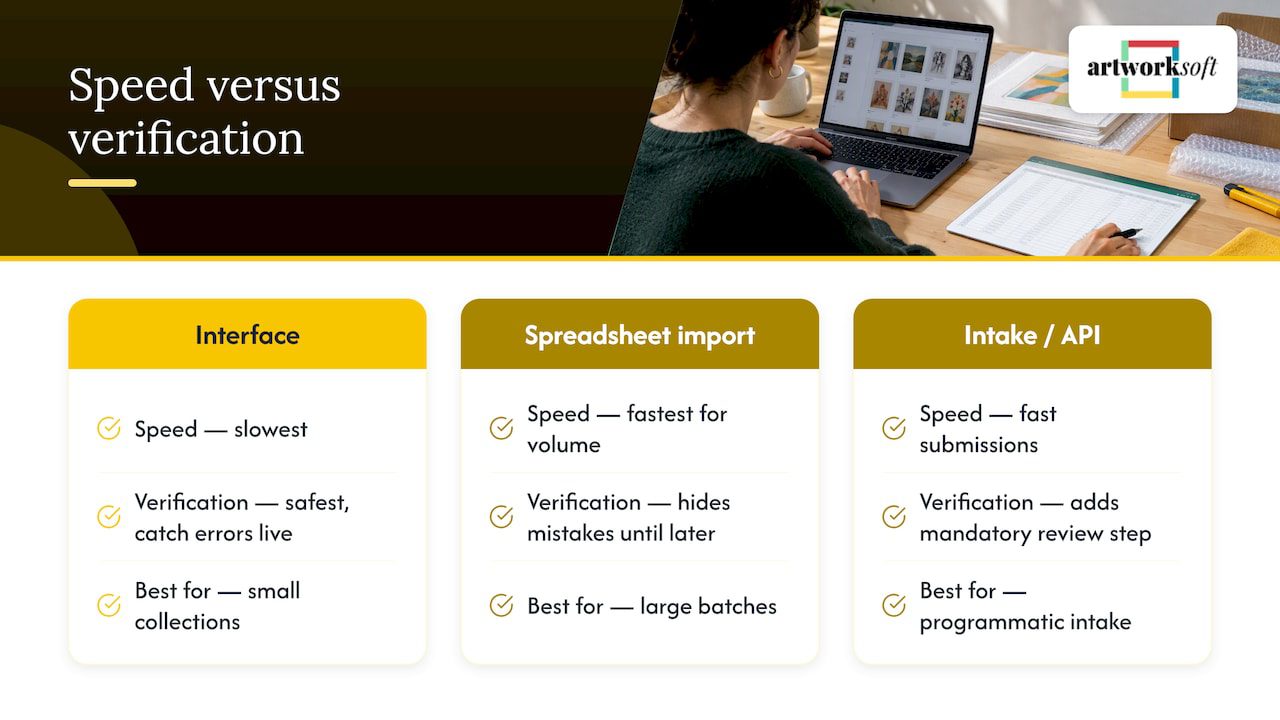
Every batch upload method trades speed for certainty. The interface is slowest but safest for small collections where you want to catch errors as they happen. Spreadsheet import wins on volume but hides mistakes until they surface downstream, often in the valuation or provenance records you build later. Intake forms and APIs solve the submission problem but add a review step you cannot skip for quality control.
The rule that holds regardless of volume: stage a small import, verify it fully, then commit the rest.
— Nealda
Get help with large or complex imports
If you are staring down a few thousand images and a spreadsheet that keeps breaking, we built our service offerings for exactly that moment. Our Free Plan covers smaller collections with no cost barrier to start, and our Provenance Plan adds the structured documentation tools that matter once your collection grows past casual tracking.

For collections too large or tangled to map alone:
- Our Onboarding & Collection Management Service handles the mapping and import work directly.
- Ongoing Collection Management keeps records accurate as new pieces come in after the initial batch.
- You can start with our free art inventory system today and request onboarding help whenever a batch gets too complex to handle solo.
FAQ
How do I upload multiple images at once?
The fastest route depends on volume: use an in-app bulk upload tool for a few dozen images, or a CSV import with an Image Files column for larger batches. Most systems let you select multiple files at once in the upload dialog, then map each to a record automatically or by filename.
What is the 2/3 rule for art?
The 2/3 rule is a compositional guideline suggesting that a painting’s focal point or horizon line often works best placed at roughly one third or two thirds of the frame, rather than dead center. It is a design convention artists use while creating work, not a rule related to digital uploading or inventory management.
What is the best website for uploading art?
The right platform depends on your goal: selling art, managing a collection as an asset, or submitting to a specific gallery or portal each call for different tools. For collectors, galleries, and artists managing inventory rather than just posting images, a structured system like Artworksoft’s art inventory platform keeps records, provenance, and documentation together in one place.
What type of art is in high demand right now?
Demand varies by market segment, medium, and buyer, and no single category holds consistently across collectors, galleries, and institutions. Rather than chasing trend claims, collectors are generally better served tracking documented provenance and condition, since those factors affect value regardless of which style is currently popular.
Sources
- Ashore — Artwork Intake: Collect files and briefs from customers without the email mess
- InfographicsMania Submission Manager – IGM FWD
- Artwork Creation – Bulk Upload (Kaleprint user guide)